Add a single application to a meeting from the application
- Open the application.
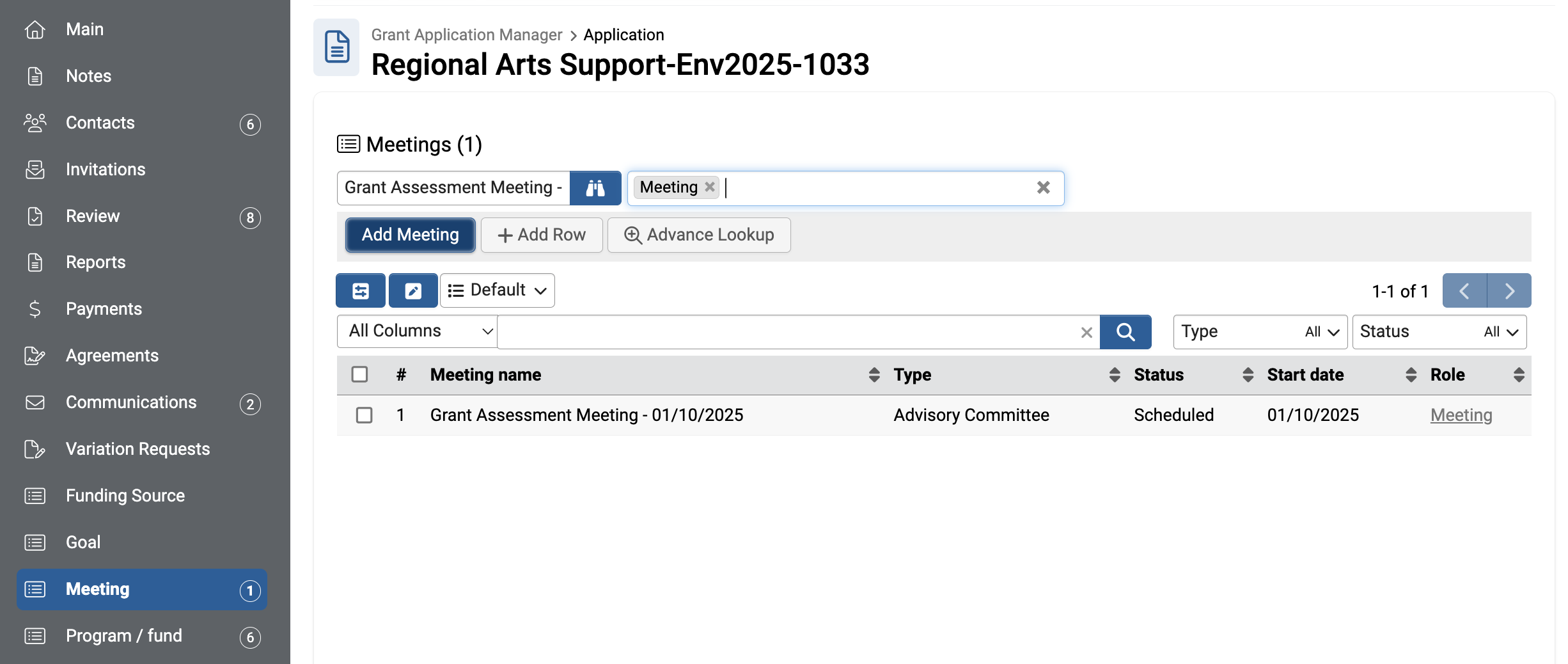
- Go to the Meeting tab on the left
- Search for the meeting using the binocular icon.
- Select Meeting and then use the Add Meeting button to add the application to the meeting.
- Once added the meeting will appear in the meeting list on the application.
- Save the application
Add applications to a meeting in bulk
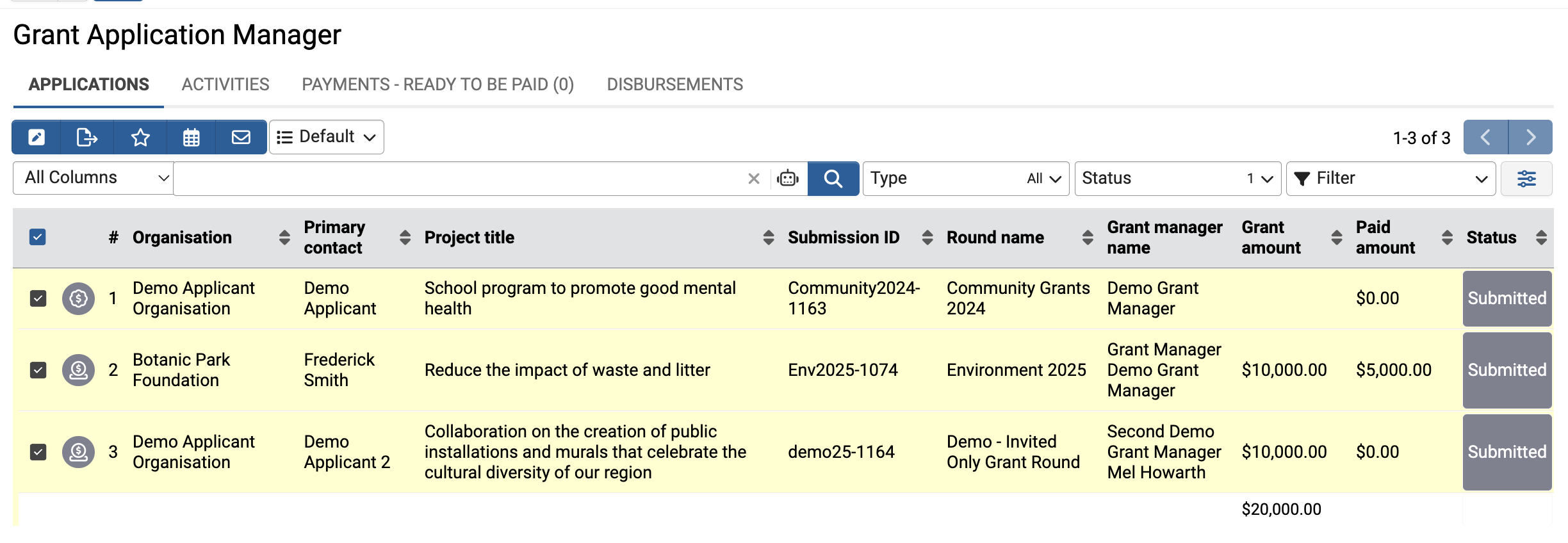
- From the Grant Application Manager go to the applications tab.
- Use the filters to show the applications you want to add or just select the relevent applications.
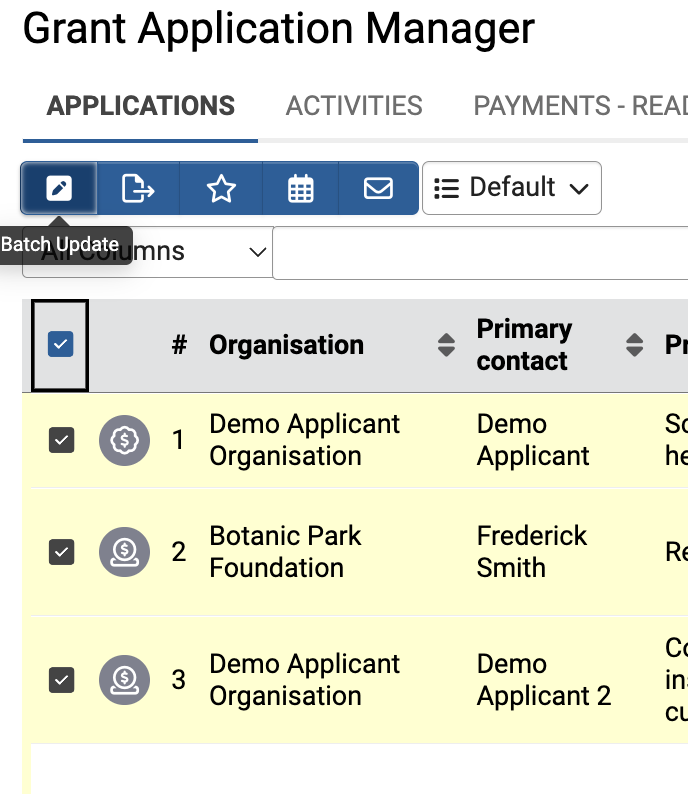
Eg. Filter by application type and status to show all submitted applications for a grant round. - Select each application you want to add (The checkbox to the right of each application). Select the checkbox in the top row to select all applications on the page.
- If you have more than one page and want to select them all just leave the check boxes empty and don't select any.
- Select the batch update icon. If you hadn't selected any applications it will prompt if you want to update all of them.
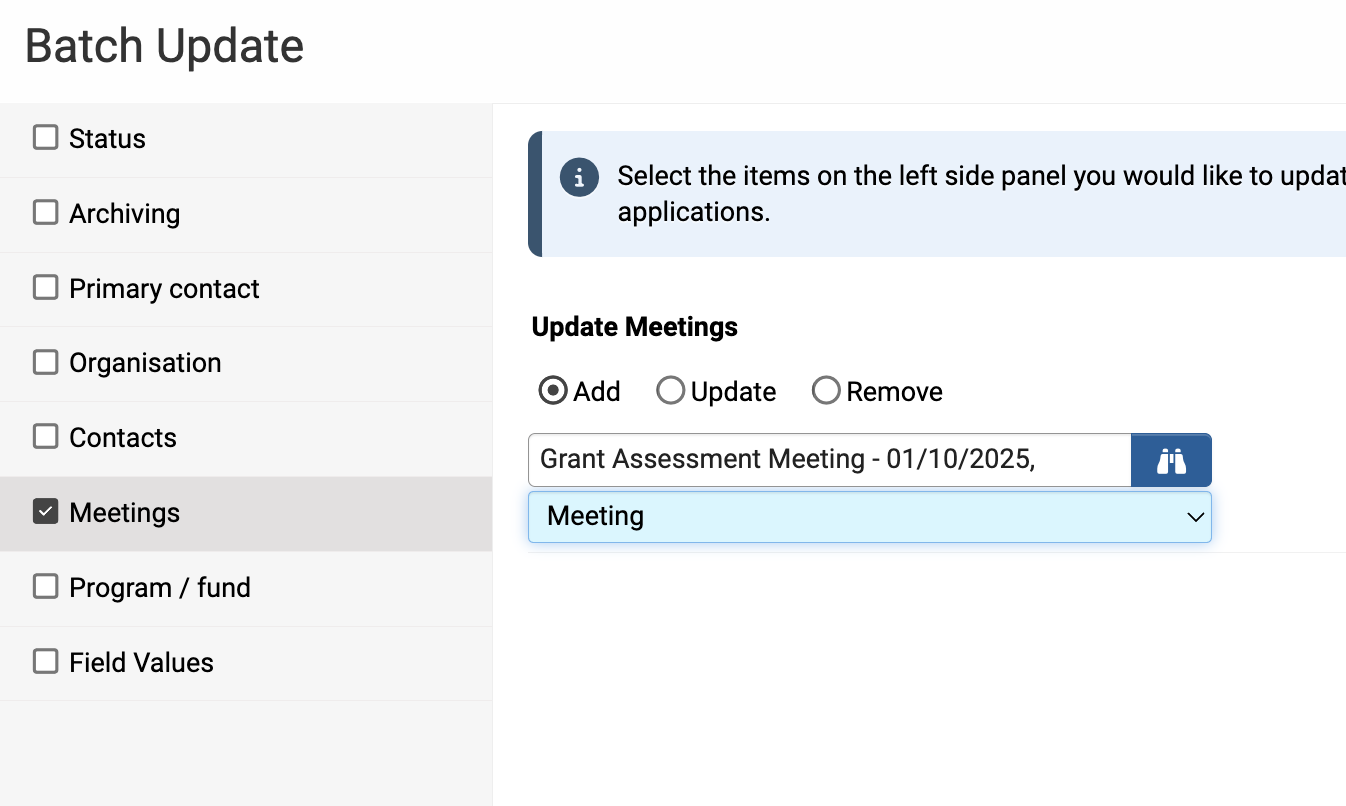
- The batch update dialog will display.
- Select Meetings and then search for the meeting and select Meeting in the dropdown.
- Click the Update Applications button to add the applications to the meeting.
Was this article helpful?
That’s Great!
Thank you for your feedback
Sorry! We couldn't be helpful
Thank you for your feedback
Feedback sent
We appreciate your effort and will try to fix the article